 InviteBatch team
In this guide
- 1Why put guest names on a digital invitation at all?
- 2Method 1: Can you just duplicate the design for each guest?
- 3Method 2: How does Canva Bulk Create work for wedding invitations?
- 4Method 3: Can a wedding website send named invitations?
- 5Method 4: What is a personal digital invitation link?
- 6How do you track RSVPs from named digital invitations?
- 7Which method is best for your guest count?
- 8What should the message say when you send the link?
- 9What mistakes should you avoid?
- 10Can you mix digital and printed invitations?
- 11Final thoughts
The short answer: there are four ways to put each guest's name on a digital wedding invitation. For a handful of guests, duplicate your design and change the name on each copy. For a bigger list, use a mail merge such as Canva Bulk Create (paid plan) to make one image per guest from a spreadsheet. Or skip the files and send each guest a personal invitation link that shows their name and has an RSVP form built in. That last option is what InviteBatch does: paste your guest list once, and every guest gets their own invitation.
If you've searched for this, you're not alone. It's one of the most common questions couples ask on wedding forums: "I designed my invitation in Canva. How do I put each guest's name on it without duplicating the page 120 times?" Others want to know whether their wedding website can send digital invitations at all, or how to keep guests from replying for people who weren't invited.
This guide answers all of that, with the steps, the time each method takes, and which one fits your guest count.
Why put guest names on a digital invitation at all?
Because a name says exactly who is invited, and it feels personal. A generic invite image dropped into a group chat reads like an announcement. "Emily & Tom, you're invited" reads like an invitation.
Names also solve practical problems:
- No plus-one confusion. If the invitation says "Sarah Smith", Sarah knows it's just her. If it says "Sarah Smith & Guest", she knows she can bring someone.
- Children are clear. "The Johnson Family" includes the kids. "Mark & Lisa Johnson" doesn't.
- Forwarding doesn't create surprise guests. A named invitation that gets forwarded is obviously someone else's.
- It looks like real stationery. Printed invitations always had a name on the envelope. A digital invitation with a name on it keeps that feeling.
For more on writing the names themselves ("Mr. and Mrs.", families, couples who live together), see how to address wedding invitations.
Method 1: Can you just duplicate the design for each guest?
Yes, and for a small wedding it's the simplest way. Open your design in Canva (or any editor), duplicate the page, change the name, and repeat for every guest. Then download each page as an image or PDF and send it.
How long it takes: about 1 to 2 minutes per guest once you get into a rhythm, so 100 guests is roughly 2 to 3 hours, plus the time to send each file.
Good for: under about 20 invitations.
Watch out for:
- Typos multiply. Every copy is typed by hand, and a misspelled name is the one mistake guests notice.
- Changes are painful. If the venue or time changes, you edit every single copy again.
- Sending is manual. You still have to match each file to the right person in your contacts.
- No RSVP. An image can't collect replies, so you need a separate RSVP form or website.
Method 2: How does Canva Bulk Create work for wedding invitations?
Canva Bulk Create is a mail merge: you give it a list of names and it makes one page per name. It's the fastest way to make named invitation images in Canva.
- Make a spreadsheet with a header in the first row, for example
Name, and one invitation per row below it: "Emily Carter", "Sarah & James Smith", "The Johnson Family". - Open your invitation design in Canva on a computer and add a separate text box where the name should go.
- Open Bulk Create from the Apps panel and upload your spreadsheet (or paste the data).
- Connect the data: right-click the name text box, choose Connect data and pick the
Namecolumn. - Generate the pages. Canva creates one page per row.
- Check every page, then download them as images or a PDF.
What to know before you start:
- Bulk Create needs a paid Canva plan (Pro, Teams and similar) and the desktop version.
- Make the name box wide enough for long names like "Alexandra & Christopher Montgomery", or they'll wrap or overflow.
- Test with three or four rows first before you run the full list.
- You still get image files, not invitations you can send. Someone has to attach each image to the right message, one guest at a time.
- There's no RSVP in the image, so you'll still need a separate way to collect replies and meal choices.
Bulk Create solves the design part well. It doesn't solve sending or tracking replies.
Method 3: Can a wedding website send named invitations?
Some wedding websites and invitation services let you send invitations by email to a guest list, and some let you limit which events each guest can RSVP to. Whether the invitation itself shows the guest's name varies a lot by service and by plan, so check that service's help centre before you commit.
What to look for if you go this route:
- Does the invitation itself show the guest's name, or only the email greeting?
- Can guests RSVP only for the people on their invitation?
- Can you send by WhatsApp or text, or only by email? Many guests never see wedding emails that land in promotions or spam.
- Are there ads on the guest's page, a per-guest fee, or paid upgrades for RSVP tracking?
- Can you get printable copies for guests who want paper?
We compare the main services in InviteBatch vs Greenvelope, Evite, Paperless Post and Joy.
Method 4: What is a personal digital invitation link?
It's a private link made for one guest (or one household) that opens their invitation with their name on it, plus date, venue, directions and an RSVP form for just the people invited. You send it like any link, by WhatsApp, text or email.
This is the method that removes the copy-and-paste work completely. Here's how it works with InviteBatch:
- Choose a design and add your names, date and venue.
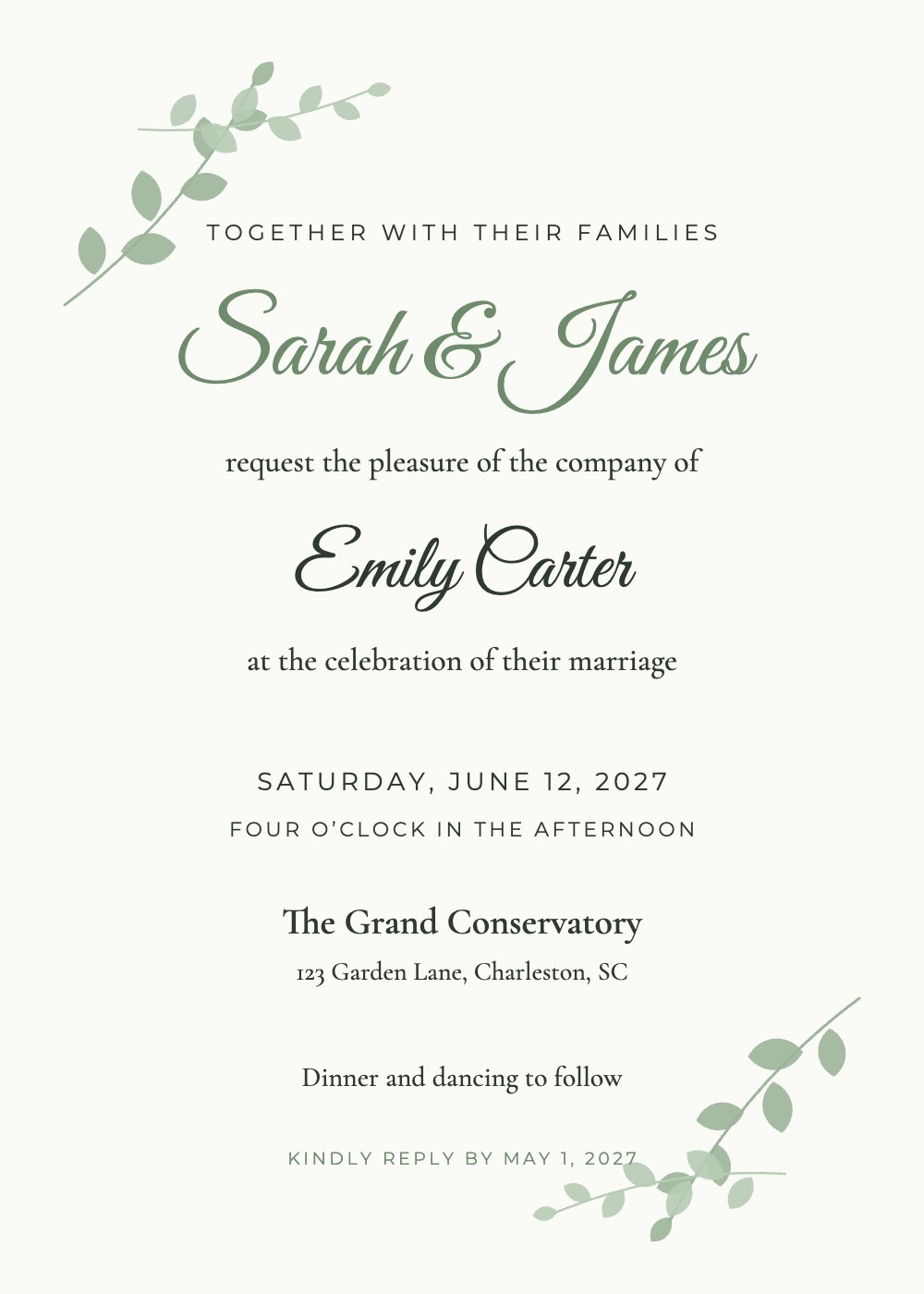
- Paste your guest list, one invitation per line: "Emily Carter", "Sarah & James Smith", "The Johnson Family", "David Lee +1". Duplicates are removed and look-alike names are flagged before anything is made.
- Check the free preview of every invitation, with each guest's name on it.
- Send. After checkout, tap WhatsApp or Text next to each guest. A short, warm message with their personal link is already written. Or copy the link into an email.
When a guest opens their link they see:
- Their invitation full screen, with their name on it. The link preview in WhatsApp or iMessage already shows their name too.
- Date, time and venue for each event they're invited to (up to 3, for example ceremony, reception and welcome drinks)
- Add to calendar and directions buttons
- An RSVP form for each person on their invitation: attending or not, meal choice, dietary needs and up to 3 questions of your own
No app, no account, no ads for your guests. And because each link only lists the people you named, nobody can RSVP for extra guests.
Sage Botanical
Wedding
How do you track RSVPs from named digital invitations?
With personal links, every reply lands in one dashboard the moment the guest sends it. You see your live headcount, each guest's meal choice and dietary needs, who has opened their invitation but not replied, and you can send a reminder to everyone who hasn't answered with one button. Export it all to a spreadsheet for your caterer or seating plan.
With image invitations (Methods 1 and 2), you need a separate RSVP form and you match the answers to your guest list yourself. For reply wording and reminders, see our wedding RSVP wording examples.
Which method is best for your guest count?
| Duplicate pages | Canva Bulk Create | Personal links (InviteBatch) | |
|---|---|---|---|
| Guest's name on the invitation | Yes, typed by hand | Yes, from a spreadsheet | Yes, from a pasted list |
| Time for 100 guests | 2 to 3 hours + sending | About 30 minutes + sending | About 10 minutes |
| How you send | Attach each file | Attach each file | Tap send per guest, message pre-written |
| RSVP built in | No | No | Yes, per person, with meals |
| Fix a mistake after sending | Edit and resend that file | Edit and resend that file | Edit once, every link updates (within 7 days) |
| Printable copies | Export again | Export again | Print-ready PDFs included |
| Cost | Free | Paid Canva plan | $49.99 one-time, up to 1,000 guests |
Our honest take:
- Under 20 guests and no RSVP needed? Duplicate the pages. It's free and quick enough.
- Already pay for Canva and only want images? Bulk Create is a great fit.
- A full guest list, and you want names, sending and RSVPs handled in one place? Use personal links. That's what InviteBatch digital wedding invitations are built for.
What should the message say when you send the link?
Keep it short, warm and personal, and use the guest's first name:
Hi Emily! We're getting married on June 12 and would love for you to be there. Here's your personal invitation and RSVP: [link]
Hi Sarah & James! You're officially invited to our wedding 💛 All the details and the RSVP are here: [link]
Hello Aunt Linda, we'd be so happy to have you with us on our big day. Your invitation is here, and you can reply right from the page: [link]
InviteBatch writes a message like this for every guest automatically. For the wording on the invitation itself, see wedding invitation wording examples.
What mistakes should you avoid?
- Sending one generic image to a group chat. People forward it, and you lose track of who is actually invited.
- Writing "and family" when you don't mean children. Write the exact names you're inviting.
- Skipping the proofread. Check every name before you send. A free preview of every invitation makes this quick.
- No RSVP deadline. Put a reply-by date on the invitation. See when to send wedding invitations and set your RSVP deadline.
- Forgetting the guests who prefer paper. Grandparents often want something to put on the fridge. Print a few cards with their names on them.
Can you mix digital and printed invitations?
Yes, and most couples do. Send personal links to most guests and print cards for the few who want paper. With InviteBatch, one order includes both: a personal digital link for every guest and print-ready PDFs with each guest's name, plus RSVP cards with each guest's own QR code. If you're printing, read how to print wedding invitations at home.
Final thoughts
Putting each guest's name on a digital wedding invitation shouldn't mean editing the same page a hundred times. For a tiny wedding, duplicate the design. If you already pay for Canva and want images, use Bulk Create. If you want the names, the sending and the RSVPs done in one go, paste your list into InviteBatch and every guest gets their own invitation in minutes, for $49.99 one-time.